System Administration
Mastering Linux find and -exec: From Basics to Expert Patterns
Menguasai find dan -exec Linux: Dari Dasar hingga Pattern Expert
Complete hands-on guide to mastering the find command and -exec option - from basic file searches to advanced logical operators, -prune optimization, and production-ready automation patterns. Learn through real experiments and avoid common pitfalls.
On this page
- Introduction
- Foundation: Basic Find Patterns
- Excluding Files by Pattern
- My Experiment
- The -exec Mystery: \; vs +
- The Difference
- Hands-On Experiment
- My Results
- Important Limitation of +
- Handling Filenames with Spaces
- The Problem
- My Test Results
- Solution 1: Use -print0 and xargs -0
- Solution 2: Use -exec directly
- Understanding the Delimiters
- Time-Based Searches: Understanding -mtime
- The Logic
- Real Scenario Test
- Common Task: Delete Old Log Files
- Logical Operators and Expression Grouping
- Understanding Precedence
- Example Without Parentheses
- My Test Results
- Complex Real-World Example
- The Tricky -prune Pattern
- The Problem: Inefficient Exclusion
- The Solution: -prune
- Understanding the Counter-Intuitive Syntax
- Hands-On Experiment
- The Mystery: Why Explicit -print is Required
- The Golden Rule
- Advanced Example
- Key Takeaways and Best Practices
- 1. Performance Matters
- 2. Always Handle Spaces in Filenames
- 3. Time Logic is Backwards
- 4. Use -prune for Large Directory Trees
- 5. Test Before Destroy
- 6. Logical Operators Need Parentheses
- 7. Know Your Options Order
- Conclusion
Introduction
The find command is one of the most powerful tools in a system administrator’s arsenal, yet it’s often misunderstood or underutilized. I realized that mastering find is essential for automation, maintenance, and troubleshooting tasks.
This article documents my journey from basic find usage to understanding advanced patterns like logical operators, -prune optimization, and the subtle differences between -exec and xargs. Through hands-on experiments and real terminal outputs, I’ll share what I learned - including common pitfalls and how to avoid them.
What you’ll learn:
- Basic to advanced
findpatterns - The critical difference between
-exec {} \;and-exec {} + - Handling filenames with spaces safely
- Logical operators and expression grouping
- The counter-intuitive
-prunesyntax for efficient directory exclusion - When to use
-execvsxargs - Real-world automation patterns
Foundation: Basic Find Patterns
Let’s start with a common scenario and build from there.
Excluding Files by Pattern
Scenario: Find all .log files but exclude any that contain .gz in the name.
Initial approach (wrong):
find /tmp/test -type f -iname "*.log"This will match app.log.2.gz because the pattern matches .log anywhere in the filename.
Correct approach:
find /tmp/test -type f -name "*.log" -not -name "*.gz"
# OR using the shorter ! syntax
find /tmp/test -type f -name "*.log" ! -name "*.gz"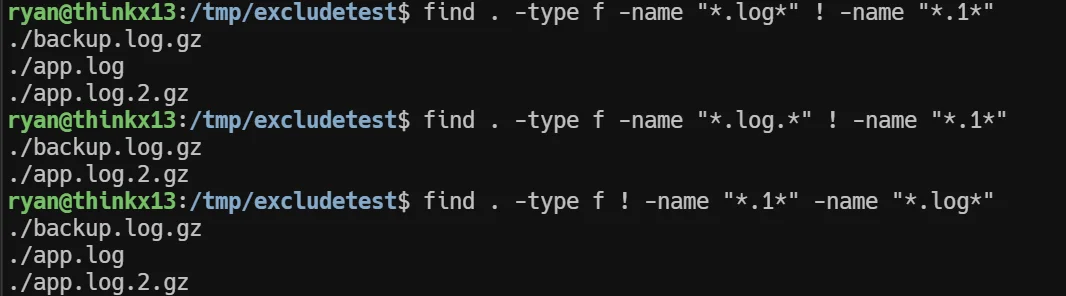
My Experiment
ryan@thinkx13:/tmp/excludetest$ touch app.log app.log.1 app.log.2.gz backup.log.gz

ryan@thinkx13:/tmp/excludetest$ find . -type f -name "*.log" -not -name "*.gz"
./app.log

ryan@thinkx13:/tmp/excludetest$ find . -type f -name "*.log" ! -name "*.gz"
./app.log

ryan@thinkx13:/tmp/excludetest$ find . -type f -name "*.log*" ! -name "*.1*"
./backup.log.gz
./app.log
./app.log.2.gz
Key insight: You can chain multiple conditions. The -not or ! operator negates the following condition. This is fundamental for building more complex queries.
The -exec Mystery: \; vs +
This is one of the most important concepts to understand for performance optimization.
The Difference
With \; (semicolon):
find /tmp -name "*.log" -exec rm {} \;Executes the command once per file. If there are 1000 files, rm is called 1000 times.
With + (plus):
find /tmp -name "*.log" -exec rm {} +Batches all files and executes the command once (or a few times if there are too many arguments). For 1000 files, it might call: rm file1.log file2.log ... file1000.log
Hands-On Experiment
# Setup
mkdir -p /tmp/findtest
cd /tmp/findtest
touch file{1..100}.txt

# Test with \;
time find . -name "*.txt" -exec echo "Processing: {}" \;

# Test with +
time find . -name "*.txt" -exec echo "Processing: {}" +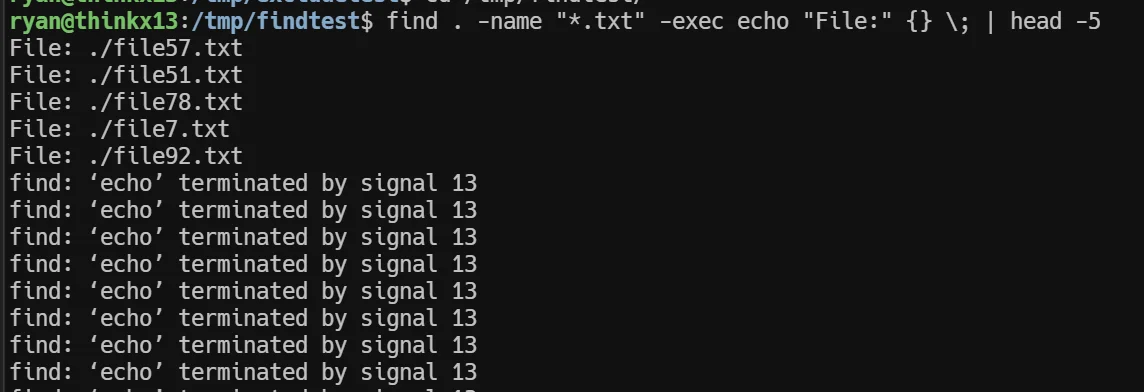
My Results
ryan@thinkx13:/tmp/findtest$ find . -name "*.txt" -exec echo "File:" {} \; | head -5
File: ./file57.txt
File: ./file51.txt
File: ./file78.txt
File: ./file7.txt
File: ./file92.txt
find: 'echo' terminated by signal 13
[... multiple SIGPIPE errors ...]
ryan@thinkx13:/tmp/findtest$ find . -name "*.txt" -exec echo "Files:" {} + | head -5
Files: ./file57.txt ./file51.txt ./file78.txt ./file7.txt ./file92.txt ./file19.txt ./file39.txt [...]Observations:
- With
\;: Each file gets its own line (one execution per file) - With
+: All files appear in one line (batch execution) - The SIGPIPE errors with
\;happen becausehead -5closes the pipe after 5 lines, butfindis still trying to write
Important Limitation of +
The placeholder {} must appear by itself when using +. You cannot embed it in a string:
# ❌ This will ERROR
find . -name "*.txt" -exec echo "Processing: {}" +

# ✅ This works
find . -name "*.txt" -exec echo "File:" {} \;

# ✅ This also works
find . -name "*.txt" -exec rm {} +
Performance tip: For operations on many files (10,000+), always prefer + over \; when possible. The performance difference can be dramatic.
Handling Filenames with Spaces
This is a classic pitfall that causes production issues.
The Problem
# Create test files
mkdir -p /tmp/spacetest
cd /tmp/spacetest
touch "my document.txt" "normal.txt" "another file.txt"

# The WRONG way (common mistake)
find . -name "*.txt" | xargs rm
What happens:
xargsreads “my document.txt” as TWO separate arguments:myanddocument.txt- Tries to execute:
rm my document.txt - Result: Error “file not found” for non-existent files
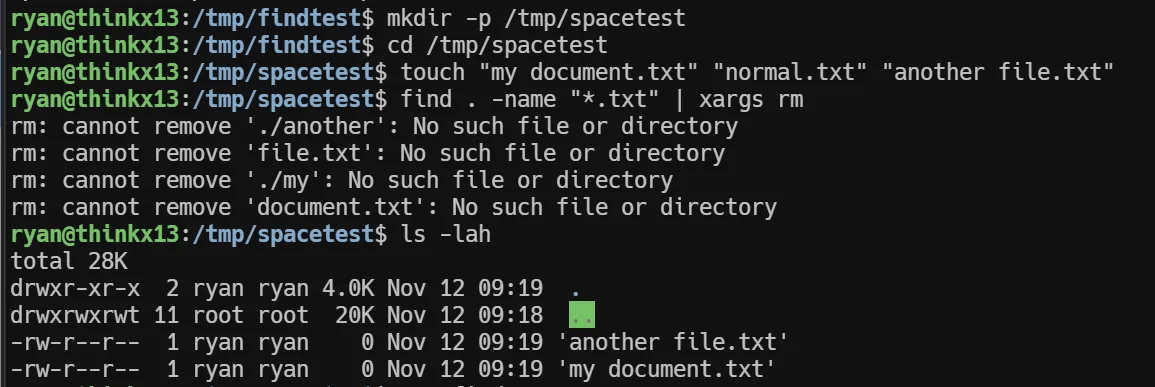
My Test Results
ryan@thinkx13:/tmp/spacetest$ ls -la
total 8
drwxrwxr-x  2 ryan ryan 4096 Nov 12 10:30 .
drwxrwxrwt 24 root root 4096 Nov 12 10:30 ..
-rw-rw-r--  1 ryan ryan    0 Nov 12 10:30 another file.txt
-rw-rw-r--  1 ryan ryan    0 Nov 12 10:30 my document.txt
-rw-rw-r--  1 ryan ryan    0 Nov 12 10:30 normal.txt

ryan@thinkx13:/tmp/spacetest$ find . -name "*.txt" | xargs rm
rm: cannot remove './another': No such file or directory
rm: cannot remove 'file.txt': No such file or directory
rm: cannot remove './my': No such file or directory
rm: cannot remove 'document.txt': No such file or directory

ryan@thinkx13:/tmp/spacetest$ ls -la
total 8
drwxrwxr-x  2 ryan ryan 4096 Nov 12 10:31 .
drwxrwxrwt 24 root root 4096 Nov 12 10:30 ..
-rw-rw-r--  1 ryan ryan    0 Nov 12 10:30 another file.txt
-rw-rw-r--  1 ryan ryan    0 Nov 12 10:30 my document.txt
Only normal.txt was deleted! Files with spaces survived but threw errors.
Solution 1: Use -print0 and xargs -0
find . -name "*.txt" -print0 | xargs -0 rmHow it works:
-print0: Uses null character (\0) as delimiter instead of newline (\n)-0: Tellsxargsto expect null-delimited input- Null character cannot appear in filenames (forbidden by Linux), so it’s always safe
Solution 2: Use -exec directly
find . -name "*.txt" -exec rm {} +This is often simpler and safer since it doesn’t involve piping.
Understanding the Delimiters
To see the actual difference:
# See the newline delimiter
find . -name "*.txt" -print | od -c

# See the null delimiter
find . -name "*.txt" -print0 | od -c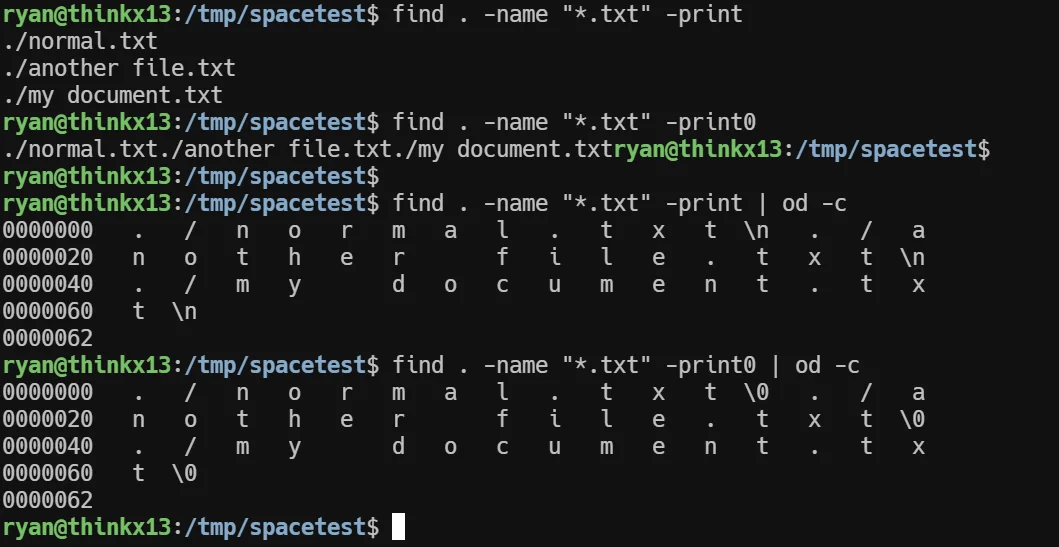
My observation:
-print: Shows\nat the end of each filename-print0: Shows\0(null character) at the end of each filename
Time-Based Searches: Understanding -mtime
This trips up even experienced administrators because the logic feels backwards.
The Logic
-mtime works in 24-hour units:
-mtime 30→ Modified exactly 30×24 hours ago (range: 30-31 days)-mtime +30→ Modified more than 31 days ago (older files)-mtime -30→ Modified less than 30 days ago (newer files)
Real Scenario Test
Given today is November 12, 2025, with these files:
old.log- modified October 10, 2025 (33 days ago)medium.log- modified October 13, 2025 (30 days ago)new.log- modified November 5, 2025 (7 days ago)
Results:
find . -type f -mtime 30   # Matches: medium.log
find . -type f -mtime +30  # Matches: old.log
find . -type f -mtime -30  # Matches: new.log
Common Task: Delete Old Log Files
Scenario: Delete .log files in /var/log/app that are:
- Empty (0 bytes)
- Older than 30 days
- In subdirectories (max depth 2)
Correct command:
# Always test first!
find /var/log/app -maxdepth 2 -type f -name "*.log" -size 0 -mtime +30 -ls

# When satisfied, delete
find /var/log/app -maxdepth 2 -type f -name "*.log" -size 0 -mtime +30 -delete
Common mistakes I made:
- Using
-mtime -30instead of-mtime +30(wrong direction!) - Writing
-mtime -30d(thedsuffix doesn’t exist in find) - Putting
-maxdepthafter other tests (it should be early in the command)
Logical Operators and Expression Grouping
This is where find becomes truly powerful for complex queries.
Understanding Precedence
In find:
- AND (
-andor implicit) has higher precedence than OR - Default operator between tests is AND
- You must use parentheses for grouping (escaped as
\(and\))
Example Without Parentheses
find . -type f -name "*.log" -o -name "*.txt" -mtime -7This is parsed as:
(-type f -name "*.log") -o (-name "*.txt" -mtime -7)NOT as:
-type f (-name "*.log" -o -name "*.txt") -mtime -7
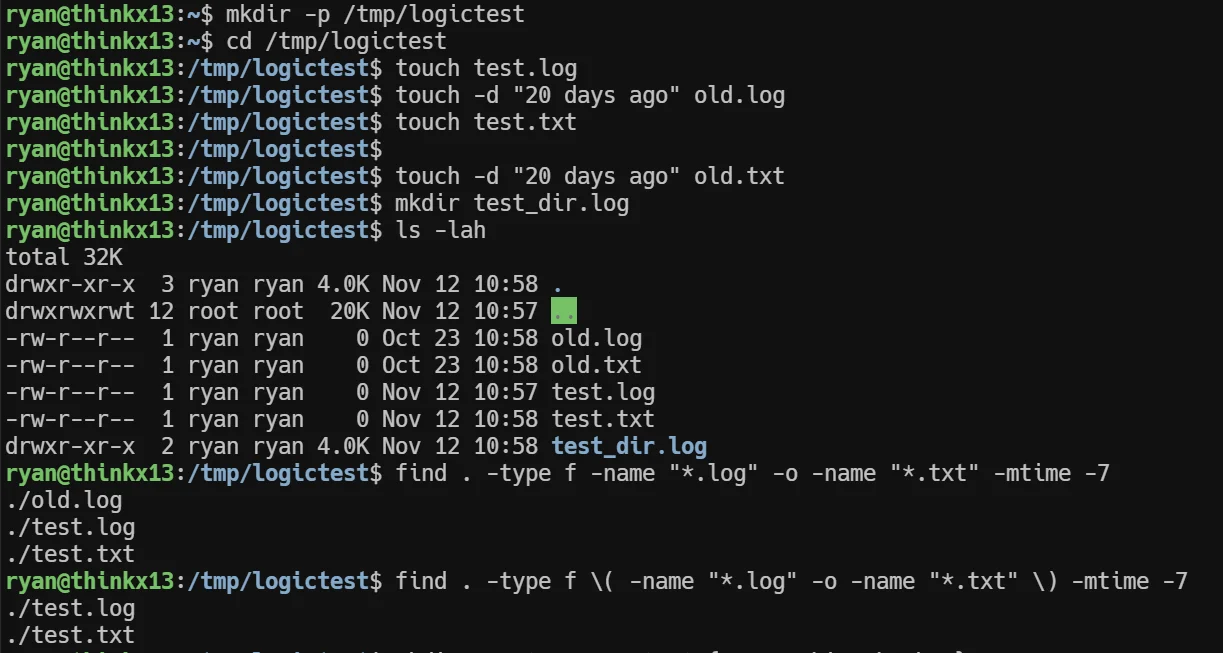
My Test Results
Setup:
mkdir -p /tmp/logictest
cd /tmp/logictest
touch test.log
touch -d "20 days ago" old.log
touch test.txt
touch -d "20 days ago" old.txt
Without parentheses:
find . -type f -name "*.log" -o -name "*.txt" -mtime -7
# Matches: test.log, test.txt
# But -type f only applies to left side!
With correct parentheses:
find . -type f \( -name "*.log" -o -name "*.txt" \) -mtime -7
# Matches: test.log, test.txt
# Now -type f applies to all matches
Complex Real-World Example
Task: Find files in /var/log that match:
- (Files ending in
.logolder than 90 days) OR (files ending in.gzolder than 180 days) - AND size greater than 100MB
Correct command:
find /var/log -type f \( -name "*.log" -mtime +90 -o -name "*.gz" -mtime +180 \) -size +100MBreaking it down:
-type f→ Only files\( ... \)→ Group the OR conditions-name "*.log" -mtime +90→ .log files older than 90 days-o→ OR-name "*.gz" -mtime +180→ .gz files older than 180 days- (implicit AND)
-size +100M→ AND size > 100MB
The Tricky -prune Pattern
This is one of the most counter-intuitive syntaxes in Unix, but it’s essential for performance when dealing with large directory trees.
The Problem: Inefficient Exclusion
Common approach:
find /var/log -type f -name "*.log" ! -path "*/archive/*" ! -path "*/backup/*"What happens:
finddescends intoarchive/andbackup/directories- Tests every file inside
- Then excludes matches based on
-path
If archive/ contains 10,000 files, you’ve wasted time scanning all of them!
The Solution: -prune
Correct syntax:
find /var/log \( -name archive -o -name backup \) -prune -o -type f -name "*.log" -printWhat happens:
- When
findencounters a directory namedarchiveorbackup -prunereturns TRUE and does not descend into that directory- Continues to next entry
Understanding the Counter-Intuitive Syntax
Let me break down why the syntax looks weird:
find /path \( -name skip_dir \) -prune -o -type f -name "*.log" -printLogic flow:
\( -name skip_dir \) -prune→ If directory name matches, prune (don’t descend)-o→ OR-type f -name "*.log" -print→ Otherwise, if it’s a .log file, print it
Mental model: Think of it as:
IF directory matches exclusion pattern THEN
    prune (don't descend)
ELSE
    evaluate normal conditions and print
Hands-On Experiment
Setup:
mkdir -p /tmp/prunetest/{app,archive,backup}
touch /tmp/prunetest/app/{debug.log,error.log}
touch /tmp/prunetest/archive/{old1.log,old2.log}
touch /tmp/prunetest/backup/{bak1.log,bak2.log}
touch /tmp/prunetest/main.log
Test with -prune:
ryan@thinkx13:/tmp/prunetest$ find /tmp/prunetest \( -name archive -o -name backup \) -prune -o -type f -name "*.log" -print

/tmp/prunetest/main.log
/tmp/prunetest/app/debug.log
/tmp/prunetest/app/error.log
Perfect! Only files we want, and find never descended into archive/ or backup/.
The Mystery: Why Explicit -print is Required
Without -print:
ryan@thinkx13:/tmp/prunetest$ find /tmp/prunetest \( -name archive -o -name backup \) -prune -o -type f -name "*.log"

/tmp/prunetest/main.log
/tmp/prunetest/backup       ← Why is this here?
/tmp/prunetest/app/debug.log
/tmp/prunetest/app/error.log
/tmp/prunetest/archive      ← Why is this here?
What happened?
When find encounters backup/ directory:
- Test:
-name backup→ TRUE - Action:
-prune→ Executed (don’t descend) - Return: TRUE
- Short-circuit: Left side is TRUE, so skip right side (the
-opart) - Default behavior: When no explicit action,
findprints entries that return TRUE
With explicit -print:
find /tmp/prunetest \( -name archive -o -name backup \) -prune -o -type f -name "*.log" -printNow:
- When
backup/matches:-prunereturns TRUE, but there’s no action after it - Right side not executed (short-circuit)
- No
-printtriggered forbackup/ - Result:
backup/not printed
The Golden Rule
Always use explicit -print when using -prune:
# ✅ CORRECT PATTERN
find ... \( conditions \) -prune -o -type f ... -print

# ❌ AMBIGUOUS (directories will also print)
find ... \( conditions \) -prune -o -type f ...
Advanced Example
Task: Find .conf files in /etc that:
- Skip
ssl/andcerts/directories - Skip any directory starting with
backup - Modified less than 30 days ago
Solution:
find /etc \( -name ssl -o -name certs -o -name "backup*" \) -prune -o -type f -name "*.conf" -mtime -30 -printKey Takeaways and Best Practices
After this deep dive, here are the essential lessons I learned:
1. Performance Matters
For batch operations on many files:
- ✅ Use
-exec {} +(batch mode) - can be 100x faster - ❌ Avoid
-exec {} \;unless you need per-file execution - ⚠️ Remember:
{}must be standalone with+
2. Always Handle Spaces in Filenames
Safe patterns:
# Option 1: Use -print0 with xargs -0
find . -name "*.txt" -print0 | xargs -0 command

# Option 2: Use -exec directly
find . -name "*.txt" -exec command {} +
3. Time Logic is Backwards
-mtime +N→ Older than N days (towards PAST)-mtime -N→ Newer than N days (towards NOW)- Always test with
-lsbefore using-delete!
4. Use -prune for Large Directory Trees
When to use:
- Excluding entire directory trees
- Working with filesystems that have millions of files
- Performance-critical scripts
Pattern:
find /path \( -name exclude_dir \) -prune -o <normal conditions> -print5. Test Before Destroy
Always follow this workflow:
# Step 1: Test with -ls
find ... -ls

# Step 2: Verify output is correct
# Step 3: Replace -ls with -delete or -exec
find ... -delete
6. Logical Operators Need Parentheses
Use grouping when combining OR conditions:
find . -type f \( -name "*.log" -o -name "*.txt" \) -mtime -7Without parentheses, precedence will surprise you!
7. Know Your Options Order
Some options must come early:
# ✅ Correct
find /path -maxdepth 2 -type f -name "*.log"

# ❌ Wrong - will warn
find /path -type f -maxdepth 2 -name "*.log"
Conclusion
The find command is deceptively simple on the surface but incredibly powerful once you understand its nuances. Through hands-on experimentation, I learned:
- The critical performance difference between
-exec \;and-exec + - Why filenames with spaces break pipelines and how to handle them
- The counter-intuitive logic of
-mtimeand-prune - How logical operators and precedence work in
findexpressions
Most importantly, I learned to always test first before running destructive operations, and to verify my assumptions through experimentation rather than guessing.
These patterns will become essential tools for automation, maintenance, and troubleshooting. I hope documenting this learning process helps others avoid the pitfalls I encountered!
Happy finding! 🔍
Comments
Comments load from GitHub Discussions as you get here.